
Add a Custom Prompt
Prerequisites
Integrate a pre-built or custom LLM before creating a prompt. See LLM Integration.Steps
- Go to Generative AI Tools > Prompts Library.
- Click + New Prompt (top right).
-
Enter the Prompt Name, then select the Feature and Model.
.png?fit=max&auto=format&n=8u_6GDkv0mmeBaq2&q=85&s=4c4d4a005b135c770d1c6f0ba08293af)
-
The Configuration section (endpoint URL, auth, headers) is auto-populated from the model integration and is read-only.
.png?fit=max&auto=format&n=8u_6GDkv0mmeBaq2&q=85&s=16eae9cdc43b432072f9428757c9ae59)
-
In the Request section, create a prompt or import an existing one.
.png?fit=max&auto=format&n=8u_6GDkv0mmeBaq2&q=85&s=c040a6f3e543e5e7c52004d837b199a2)
-
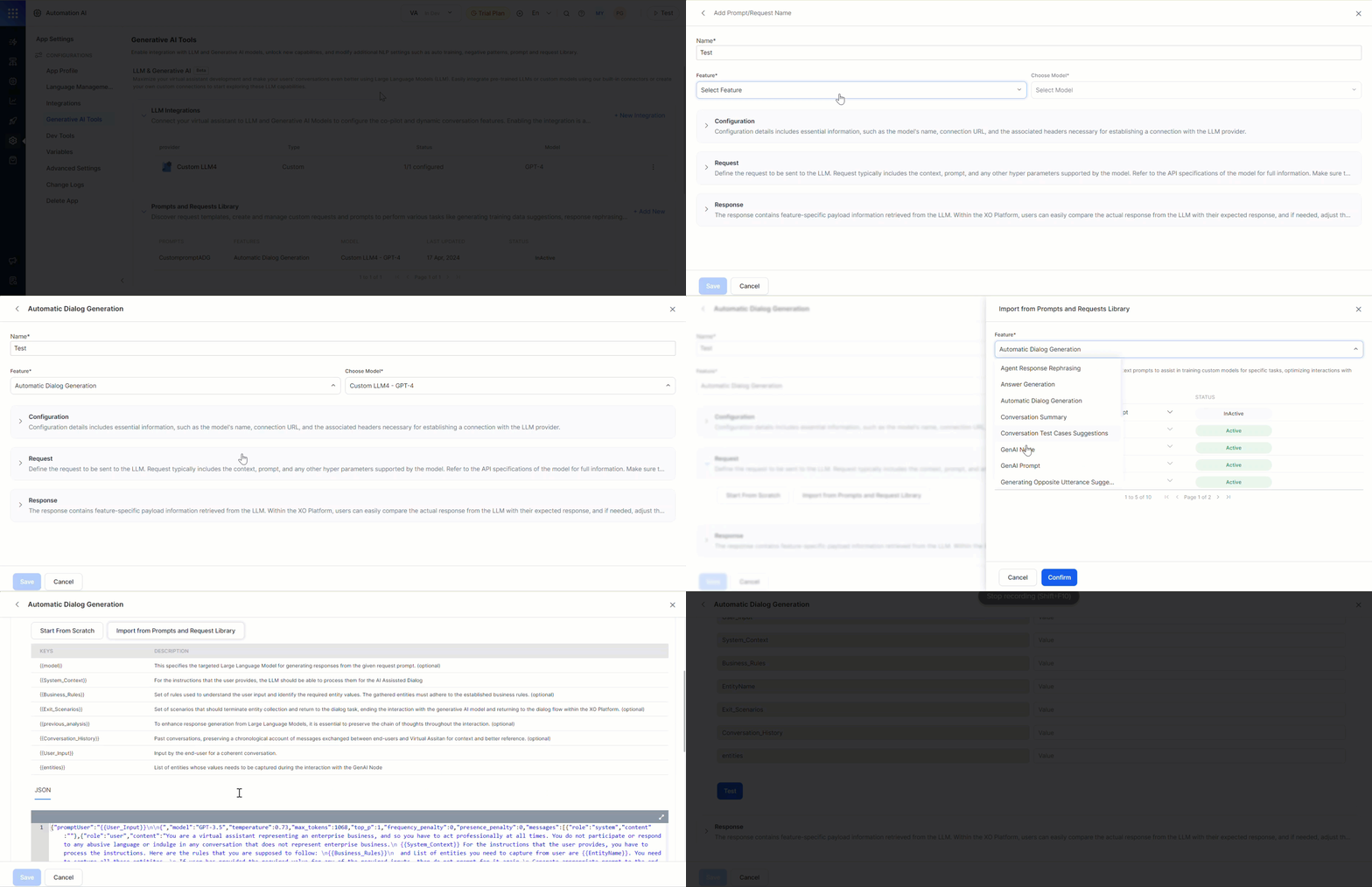
Click Import from Prompts and Requests Library.
-
Select the Feature, Model, and Prompt. Hover and click Preview Prompt to review before importing.
You can interchange prompts between features.
- Click Confirm to import the prompt into the JSON body.
.png?fit=max&auto=format&n=8u_6GDkv0mmeBaq2&q=85&s=c99b31decfd4eef0ef55e5d889433010)
-
Click Import from Prompts and Requests Library.
-
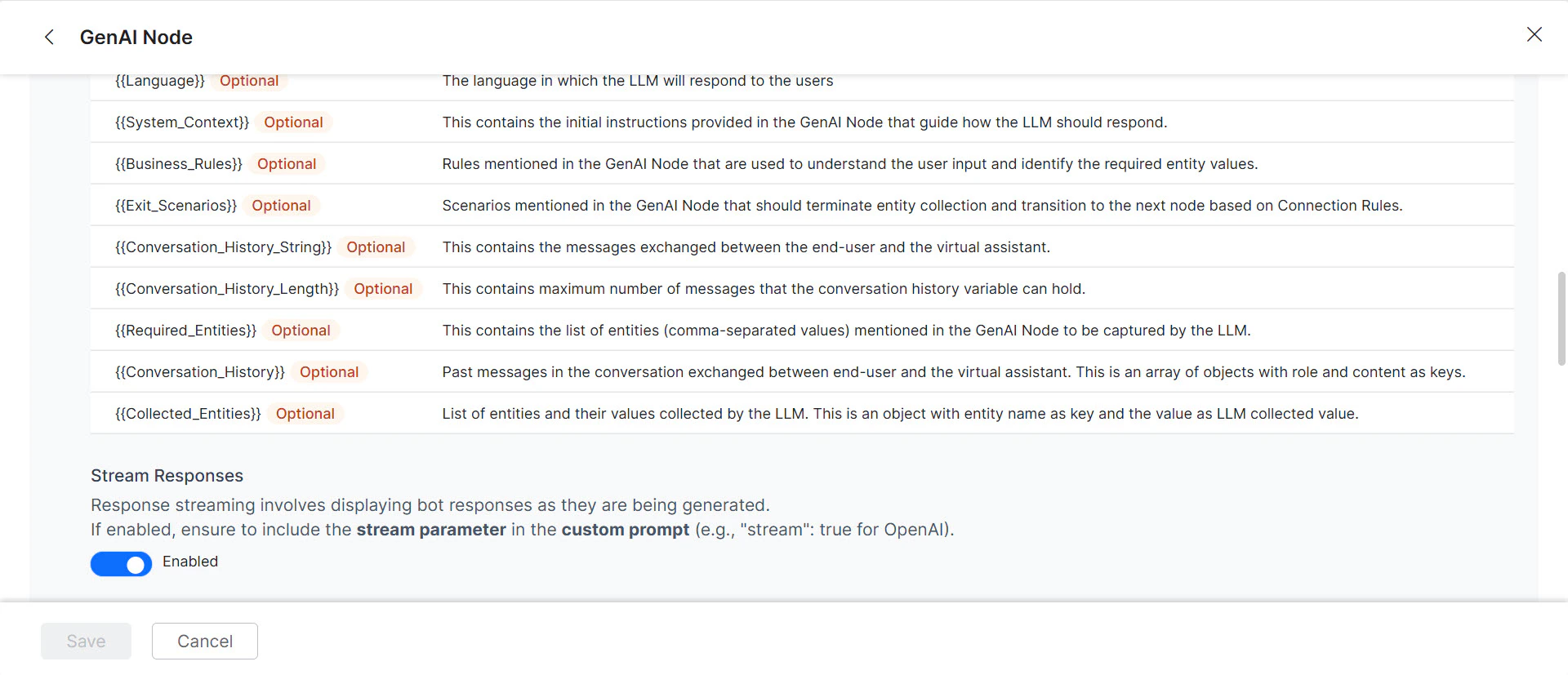
(Optional) Toggle Stream Response to enable streaming. Responses are sent incrementally in real time instead of waiting for the full response.
- Add
"stream": trueto the custom prompt when streaming is enabled. The saved prompt displays a “streaming” tag. - Enabling streaming disables the “Exit Scenario” field. Streaming applies only to Agent Node and Prompt Node features using OpenAI and Azure OpenAI models.
-
Fill in the Sample Context Values and click Test. If successful, the LLM response is displayed; otherwise an error appears.
.png?fit=max&auto=format&n=8u_6GDkv0mmeBaq2&q=85&s=29d290e7419214c01e3b554d81bb8663)
-
Map the response key: In the JSON response, double-click the key that holds the relevant information (e.g.,
content). The Platform generates a Response Path for that location. Click Save.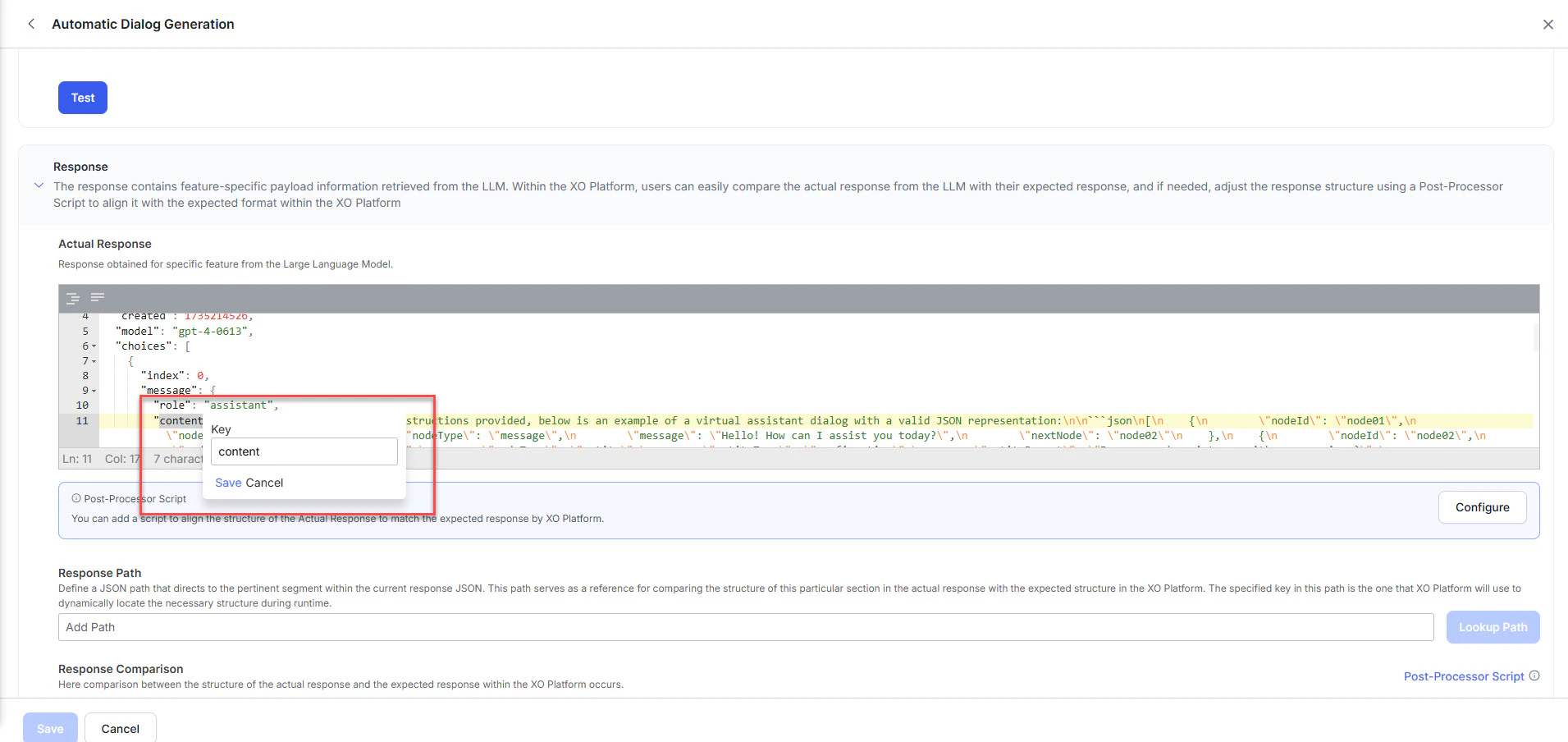
-
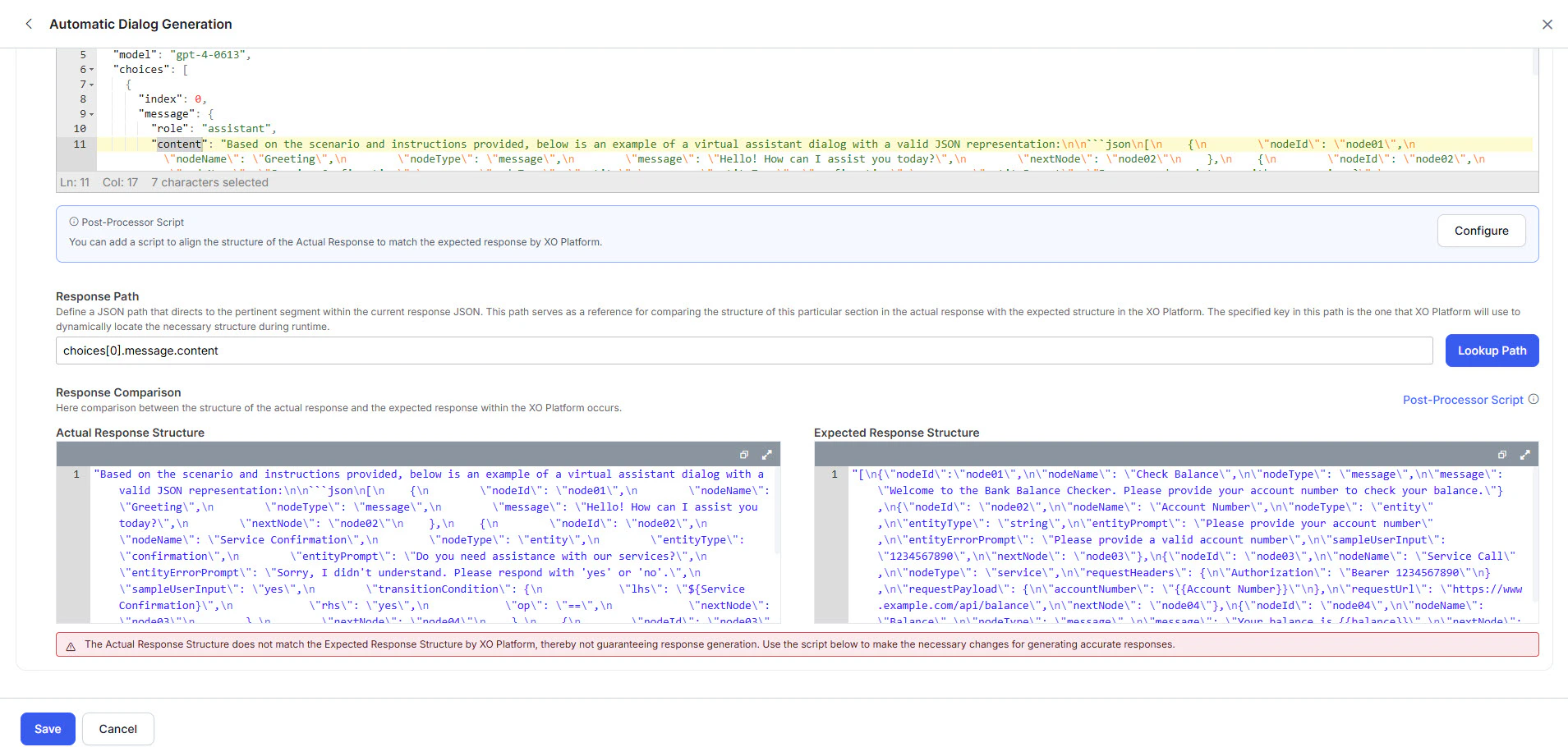
Click Lookup Path to validate the path.
-
Review the Actual Response and Expected Response:
-
Green (match): Click Save. Skip to step 12.
.png?fit=max&auto=format&n=8u_6GDkv0mmeBaq2&q=85&s=5a63a1ccabc24df23899f85bf837fae7)
-
Red (mismatch): Click Configure to open the Post Processor Script editor.
.png?fit=max&auto=format&n=8u_6GDkv0mmeBaq2&q=85&s=239babf6d5fd9e5f19be33ca6bbf4346)
-
Enter the Post Processor Script and click Save & Test.
.png?fit=max&auto=format&n=8u_6GDkv0mmeBaq2&q=85&s=a82a0392924c400adcdf153135eb7f4e)
-
Verify the result, then click Save. The responses turn green.
.png?fit=max&auto=format&n=8u_6GDkv0mmeBaq2&q=85&s=df01409206c74f29e04acacf309eb3db)
-
Enter the Post Processor Script and click Save & Test.
-
Green (match): Click Save. Skip to step 12.
-
(Optional) If Token Usage Limits are enabled for your custom model, map the token keys for accurate tracking:
- Request Tokens key:
usage.input_tokens - Response Tokens key:
usage.output_tokens
 Without this mapping, the Platform can’t calculate token consumption, which may lead to untracked usage and unexpected costs.
 - Request Tokens key:
- Click Save. The prompt appears in the Prompts Library.