> ## Documentation Index
> Fetch the complete documentation index at: https://koreai-agent-management-platform-dev.mintlify.app/llms.txt
> Use this file to discover all available pages before exploring further.
# Configuring the HubSpot Action
[Back to Actions Integrations](/ai-for-service/integrations/overview#actions)
Connect the HubSpot integration to create, view, update, search, and delete deals and contacts using pre-built templates. See [HubSpot](https://www.hubspot.com/) for more information.
***
## Authorizations Supported
The XO Platform supports OAuth 2.0 for HubSpot. See [Setting Up Authorization Using OAuth v2](../../../dev-tools/bot-authorization/setting-up-authorization-using-oauth-v2.md) for details.
| Authorization Type | OAuth - System | OAuth - Custom |
| ---------------------------------------- | -------------- | -------------- |
| Pre-authorize the Integration | Yes | Yes |
| Allow Users to Authorize the Integration | Yes | Yes |
***
## Step 1: Enable the HubSpot Action
**Prerequisites:**
* Create a developer account in HubSpot. See [HubSpot Developer Center](https://developers.hubspot.com/docs/api/creating-an-app) for details.
* Copy the Client ID and Client Secret key values.
**Steps:**
1. Go to **App Settings** > **Integrations** > **Actions**.
2. In the **Available** section, select **HubSpot**.
### Pre-authorize the Integration
**System Authorization**
Pre-authorize with Kore.ai's preconfigured HubSpot app:
1. Go to **App Settings** > **Integrations** > **Actions** and select **HubSpot**.
2. In **Configurations**, select the **Authorization** tab.
3. Set **Authorization Type** to **Pre-authorize the Integration** > **OAuth**.
4. Select the **System** card and click **Authorize**.

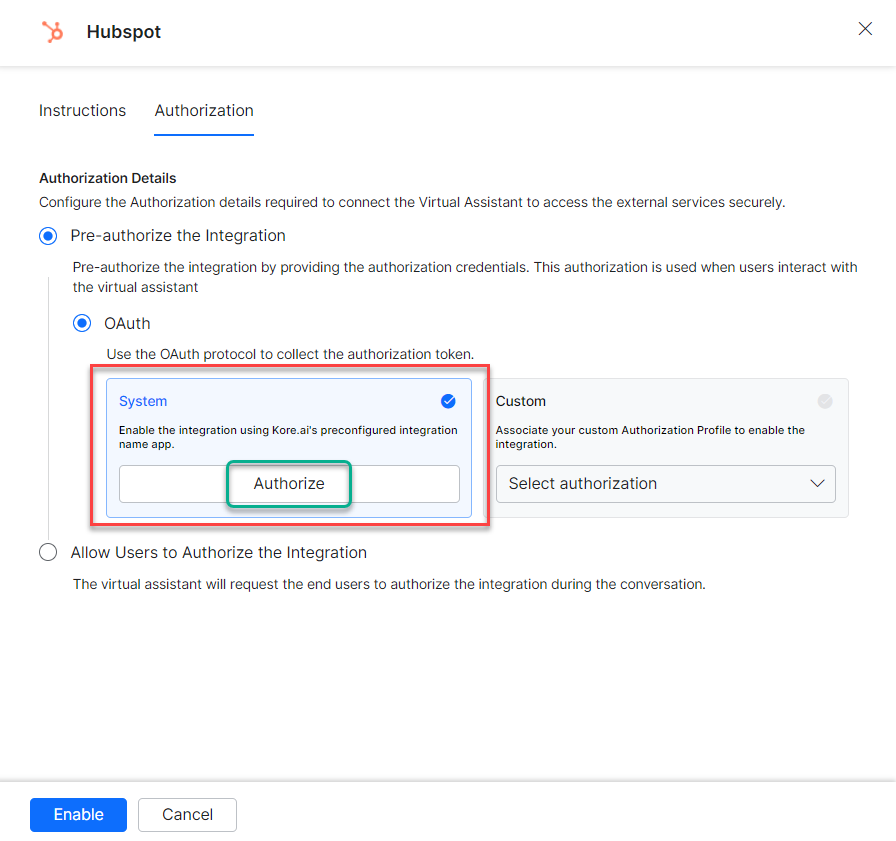 5. You are redirected to `login.hubspot.com`. Enter your developer account credentials.
 6. Select a HubSpot account and click **Choose Account**.
7. Click **Enable**.
**Custom Authorization**
Use your own OAuth profile instead of Kore.ai's app:
1. Select **Custom** and click **Select Authorization** > **Create New**.
6. Select a HubSpot account and click **Choose Account**.
7. Click **Enable**.
**Custom Authorization**
Use your own OAuth profile instead of Kore.ai's app:
1. Select **Custom** and click **Select Authorization** > **Create New**.
 2. Select **OAuth v2**. See [Setting Up Authorization Using OAuth v2](../../../dev-tools/bot-authorization/setting-up-authorization-using-oauth-v2.md).
 3. Enter the OAuth v2 credentials:
* Call back URL
* Identity Provider Name
* Client ID
* Client Secret
* Authorization URL
* Token Request URL
* Scope
* Refresh Token URL
3. Enter the OAuth v2 credentials:
* Call back URL
* Identity Provider Name
* Client ID
* Client Secret
* Authorization URL
* Token Request URL
* Scope
* Refresh Token URL
 4. Click **Save Auth**, select the new profile, then click **Authorize**.
5. Enter credentials at `login.hubspot.com`.
6. Select a HubSpot account, click **Choose Account**, then click **Enable**.
4. Click **Save Auth**, select the new profile, then click **Authorize**.
5. Enter credentials at `login.hubspot.com`.
6. Select a HubSpot account, click **Choose Account**, then click **Enable**.
 The HubSpot action moves from *Available* to *Configured* after enabling.
### Allow End User to Authorize
**System Authorization**
1. Go to **App Settings** > **Integrations** > **Actions** and select **HubSpot**.
2. In **Configurations**, select the **Authorization** tab.
3. Set **Authorization Type** to **Allow Users to Authorize the Integration** > **OAuth**.
4. Select the **System** card.
5. Click **Enable**. A link is sent to the end user to authorize integration.
The HubSpot action moves from *Available* to *Configured* after enabling.
### Allow End User to Authorize
**System Authorization**
1. Go to **App Settings** > **Integrations** > **Actions** and select **HubSpot**.
2. In **Configurations**, select the **Authorization** tab.
3. Set **Authorization Type** to **Allow Users to Authorize the Integration** > **OAuth**.
4. Select the **System** card.
5. Click **Enable**. A link is sent to the end user to authorize integration.
 **Custom Authorization**
1. Select **Allow Users to Authorize the Integration** > **OAuth** > **Custom**.
2. Click **Select Authorization** > **Create New** and follow the Custom Authorization steps above.
**Custom Authorization**
1. Select **Allow Users to Authorize the Integration** > **OAuth** > **Custom**.
2. Click **Select Authorization** > **Create New** and follow the Custom Authorization steps above.
 You can also select an existing profile:
 3. Click **Enable**.
***
## Step 2: Install the HubSpot Action Templates
1. On the **Integration Successful** dialog, click **Explore Templates**.
2. In the Integration Templates dialog, click **Install**.
3. Click **Enable**.
***
## Step 2: Install the HubSpot Action Templates
1. On the **Integration Successful** dialog, click **Explore Templates**.
2. In the Integration Templates dialog, click **Install**.
 3. Once installed, the associated dialog task is auto-created. Click **Go to Dialog** or go to **Automation AI** > **Use Cases** > **Dialogs**.
4. To use the templates, see [Using HubSpot Templates](using-the-hubspot-action-templates.md).
Built with [Mintlify](https://mintlify.com).
3. Once installed, the associated dialog task is auto-created. Click **Go to Dialog** or go to **Automation AI** > **Use Cases** > **Dialogs**.
4. To use the templates, see [Using HubSpot Templates](using-the-hubspot-action-templates.md).
Built with [Mintlify](https://mintlify.com).