> ## Documentation Index
> Fetch the complete documentation index at: https://koreai-agent-management-platform-dev.mintlify.app/llms.txt
> Use this file to discover all available pages before exploring further.
# Understanding Views and Permissions
Audit Allocations shows different views depending on your role and permissions.
| Permission Level | Tabs Available |
| ------------------------------------------ | ----------------------------------------- |
| **With allocation creation permission** | **My Allocations** and **Assigned to Me** |
| **Without allocation creation permission** | **Assigned to Me** only |
***
## My Allocations
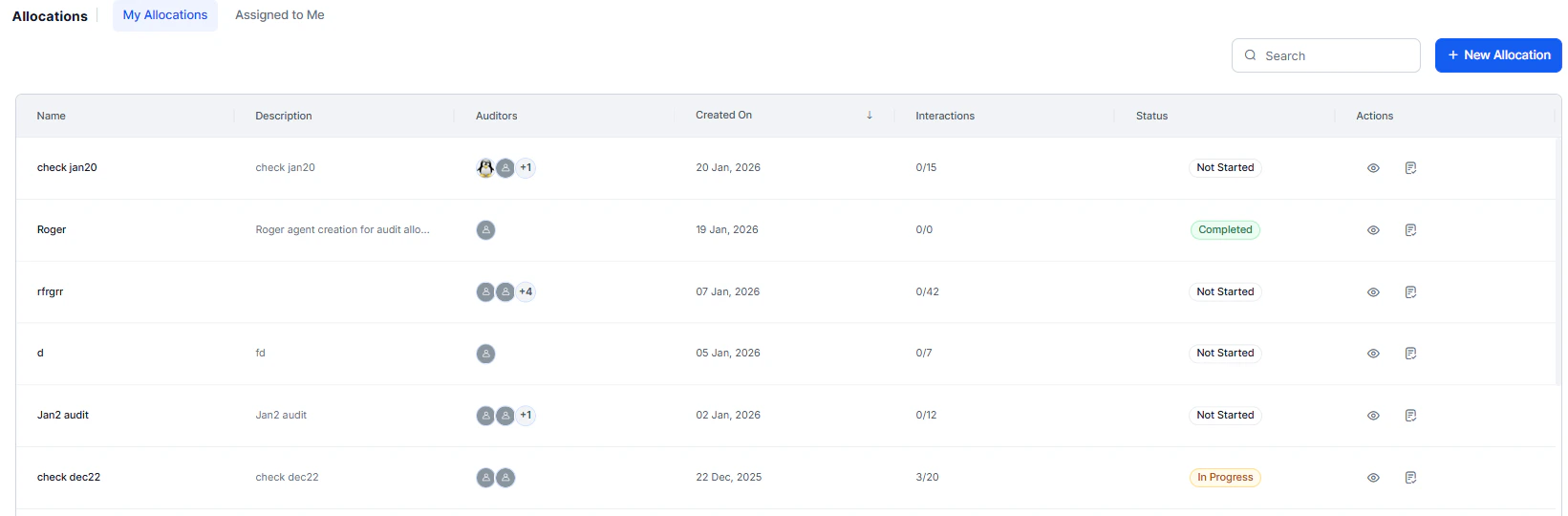
The **My Allocations** tab is the central dashboard for managing all audit assignments you've created. It provides complete visibility into allocation status, completion progress, and auditor assignments.
Navigate to **Quality AI** > **ANALYZE** > **Allocations** > **My Allocations**.
 ### Allocation Overview
| Column | Description |
| --------------- | ----------------------------------------- |
| **Name** | Allocation identifier you created. |
| **Description** | Description for the allocation. |
| **Auditor** | List of auditors assigned. |
| **Created On** | Date of creation. |
| **Interaction** | Number of interactions. |
| **Status** | Overall state (Completed or In Progress). |
| **Actions** | Management options: View Logic and Edit. |
### View Logic
Reveals the complete configuration behind an allocation — helpful for understanding its composition and replicating successful audit strategies.
### Allocation Overview
| Column | Description |
| --------------- | ----------------------------------------- |
| **Name** | Allocation identifier you created. |
| **Description** | Description for the allocation. |
| **Auditor** | List of auditors assigned. |
| **Created On** | Date of creation. |
| **Interaction** | Number of interactions. |
| **Status** | Overall state (Completed or In Progress). |
| **Actions** | Management options: View Logic and Edit. |
### View Logic
Reveals the complete configuration behind an allocation — helpful for understanding its composition and replicating successful audit strategies.
 Select **View Logic** from the Actions menu to see:
| Field | Description |
| ----------------------- | ------------------------------------------------------ |
| **Date Range** | Date range for selected interactions. |
| **Evaluation Form** | Form template used for evaluating interactions. |
| **Languages** | Language filters applied. |
| **Queues** | Selected queues or all queues. |
| **Agents/Agent Groups** | Specific agents or groups included. |
| **Allocation Type** | Random or Custom. |
| **Channel Settings** | Voice, Chat, or both. |
| **Assignment Logic** | Percentage-based or fixed interaction count per agent. |
| **Custom Filters** | Applied filters for custom allocations. |
### Edit Allocation
Use Edit to redistribute pending interactions without disrupting completed work — especially when auditor availability changes.
**When to use Edit:**
* Reassign interactions from auditors on leave or unavailable.
* Balance workload when some auditors finish faster than others.
* Add new auditors to help complete an allocation.
* Update the allocation name or description.
**Edit process:**
1. Select **Edit** from the Actions menu.
2. Update **Name** or **Description** if needed.
3. Review current auditor assignments, which show:
* Auditor name
* Total interactions assigned
* Completed count
* Pending count
4. Select the auditors to reassign interactions from (only pending interactions can be reassigned).
5. Choose a reassignment option:
| Option | Description |
| ---------------------------------------- | ------------------------------------------------------------------- |
| **Redistribute Among Existing Auditors** | Assign pending interactions to auditors already in this allocation. |
| **Add New Auditors** | Include additional team members to help complete the allocation. |
6. Enter the allocation percentage for each auditor receiving redistributed interactions. The system calculates interaction counts automatically.
7. Select **Update** to apply changes.
### Create New Allocation
Select **New Audit Allocation** to start the three-step creation process: Settings, Allocation, and Assignment. For details, see [Creating Audit Allocations](../analyze/creating-audit-allocations.md).
***
## Assigned to Me
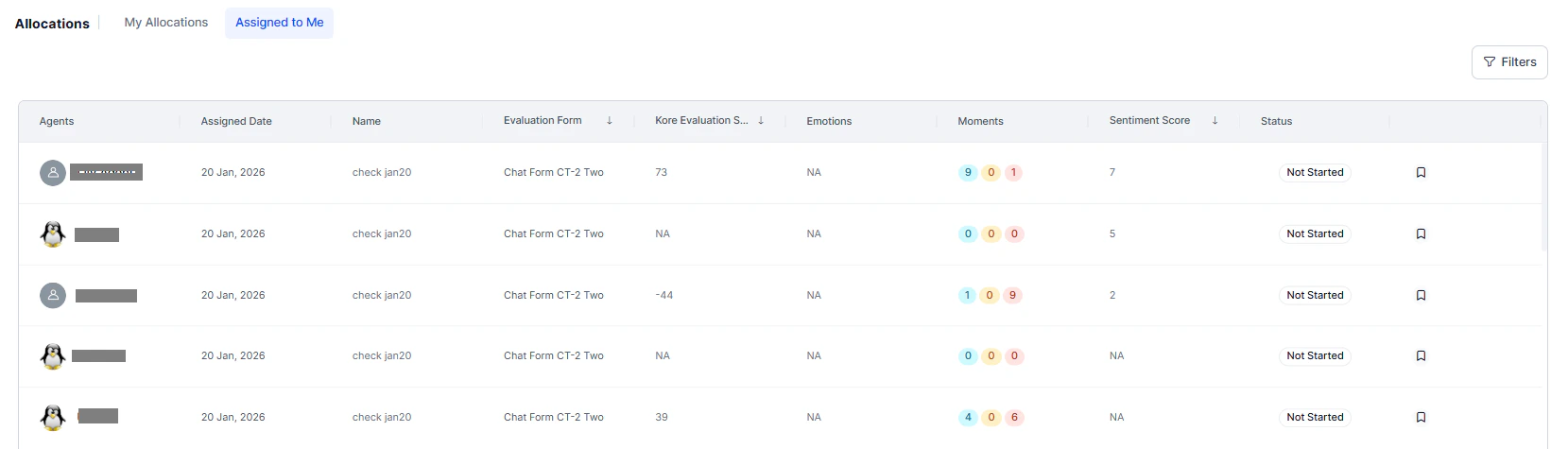
The **Assigned to Me** tab shows all interactions that managers or supervisors have assigned to you for manual evaluation.
Select **View Logic** from the Actions menu to see:
| Field | Description |
| ----------------------- | ------------------------------------------------------ |
| **Date Range** | Date range for selected interactions. |
| **Evaluation Form** | Form template used for evaluating interactions. |
| **Languages** | Language filters applied. |
| **Queues** | Selected queues or all queues. |
| **Agents/Agent Groups** | Specific agents or groups included. |
| **Allocation Type** | Random or Custom. |
| **Channel Settings** | Voice, Chat, or both. |
| **Assignment Logic** | Percentage-based or fixed interaction count per agent. |
| **Custom Filters** | Applied filters for custom allocations. |
### Edit Allocation
Use Edit to redistribute pending interactions without disrupting completed work — especially when auditor availability changes.
**When to use Edit:**
* Reassign interactions from auditors on leave or unavailable.
* Balance workload when some auditors finish faster than others.
* Add new auditors to help complete an allocation.
* Update the allocation name or description.
**Edit process:**
1. Select **Edit** from the Actions menu.
2. Update **Name** or **Description** if needed.
3. Review current auditor assignments, which show:
* Auditor name
* Total interactions assigned
* Completed count
* Pending count
4. Select the auditors to reassign interactions from (only pending interactions can be reassigned).
5. Choose a reassignment option:
| Option | Description |
| ---------------------------------------- | ------------------------------------------------------------------- |
| **Redistribute Among Existing Auditors** | Assign pending interactions to auditors already in this allocation. |
| **Add New Auditors** | Include additional team members to help complete the allocation. |
6. Enter the allocation percentage for each auditor receiving redistributed interactions. The system calculates interaction counts automatically.
7. Select **Update** to apply changes.
### Create New Allocation
Select **New Audit Allocation** to start the three-step creation process: Settings, Allocation, and Assignment. For details, see [Creating Audit Allocations](../analyze/creating-audit-allocations.md).
***
## Assigned to Me
The **Assigned to Me** tab shows all interactions that managers or supervisors have assigned to you for manual evaluation.
 ### Interaction List
| Column | Description |
| ------------------------- | --------------------------------------------------------------------------------- |
| **Name** | Allocation name. |
| **Agent** | Agent who handled the interaction. |
| **Assigned Date** | Date the allocation was created. |
| **Evaluation Form** | Form to use for evaluation. |
| **Kore Evaluation Score** | Auto QA score, if available. |
| **Emotions** | Detected customer emotions (for example, frustrated, satisfied, neutral). |
| **Moments** | Key moments identified (for example, escalation points, resolution moments). |
| **Sentiment Score** | Overall sentiment analysis (positive, negative, or neutral with numerical score). |
### Filter and Search
Use **Filters** to narrow your assigned interactions:
| Filter | Description |
| ------------------- | -------------------------------------------------------------- |
| **Allocation Name** | Filter by specific allocation names using the search dropdown. |
| **Date Range** | Focus on interactions from specific time periods. |
| **Agent** | View interactions for specific agents. |
| **Queue** | Filter by queue assignments. |
| **Evaluation Form** | See interactions using specific forms. |
### Evaluation Workflow
### Interaction List
| Column | Description |
| ------------------------- | --------------------------------------------------------------------------------- |
| **Name** | Allocation name. |
| **Agent** | Agent who handled the interaction. |
| **Assigned Date** | Date the allocation was created. |
| **Evaluation Form** | Form to use for evaluation. |
| **Kore Evaluation Score** | Auto QA score, if available. |
| **Emotions** | Detected customer emotions (for example, frustrated, satisfied, neutral). |
| **Moments** | Key moments identified (for example, escalation points, resolution moments). |
| **Sentiment Score** | Overall sentiment analysis (positive, negative, or neutral with numerical score). |
### Filter and Search
Use **Filters** to narrow your assigned interactions:
| Filter | Description |
| ------------------- | -------------------------------------------------------------- |
| **Allocation Name** | Filter by specific allocation names using the search dropdown. |
| **Date Range** | Focus on interactions from specific time periods. |
| **Agent** | View interactions for specific agents. |
| **Queue** | Filter by queue assignments. |
| **Evaluation Form** | See interactions using specific forms. |
### Evaluation Workflow
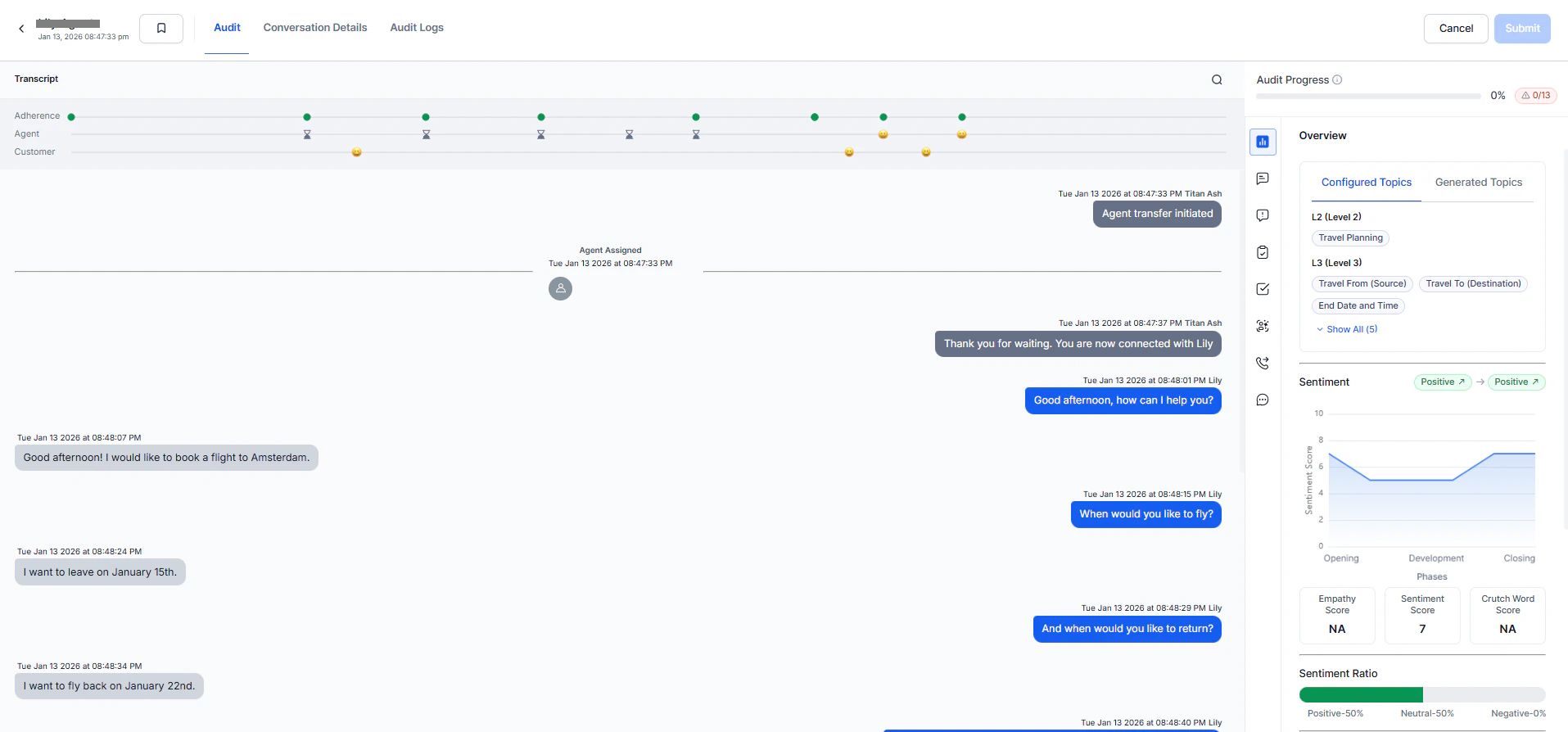 1. Select **Evaluate** for an interaction to open the full conversation view.
2. Review the complete interaction with all available context:
* Customer-agent conversation flow
* Interaction metadata (duration, channel, queue)
* Auto QA scores and insights
* Topic identification and sentiment analysis
3. Use the assigned Evaluation Form to score each criterion.
4. Save your evaluation when complete.
5. The interaction is automatically removed from your **Assigned to Me** list after submission.
***
Built with [Mintlify](https://mintlify.com).
1. Select **Evaluate** for an interaction to open the full conversation view.
2. Review the complete interaction with all available context:
* Customer-agent conversation flow
* Interaction metadata (duration, channel, queue)
* Auto QA scores and insights
* Topic identification and sentiment analysis
3. Use the assigned Evaluation Form to score each criterion.
4. Save your evaluation when complete.
5. The interaction is automatically removed from your **Assigned to Me** list after submission.
***
Built with [Mintlify](https://mintlify.com).